
How to Print activities in Education Perfect
Whether you need to accommodate students working offline or prefer a tactile classroom experience, EP Create allows you to transition digital content into high-quality physical printables.
Printing activities in EP Create
Once you have built your EP Create activity, you can choose to assign digitally, or generate a PDF and print directly from your workspace.
- Navigate to the specific activity you wish to print.
-
Click the Print button found within the editor toolbar.
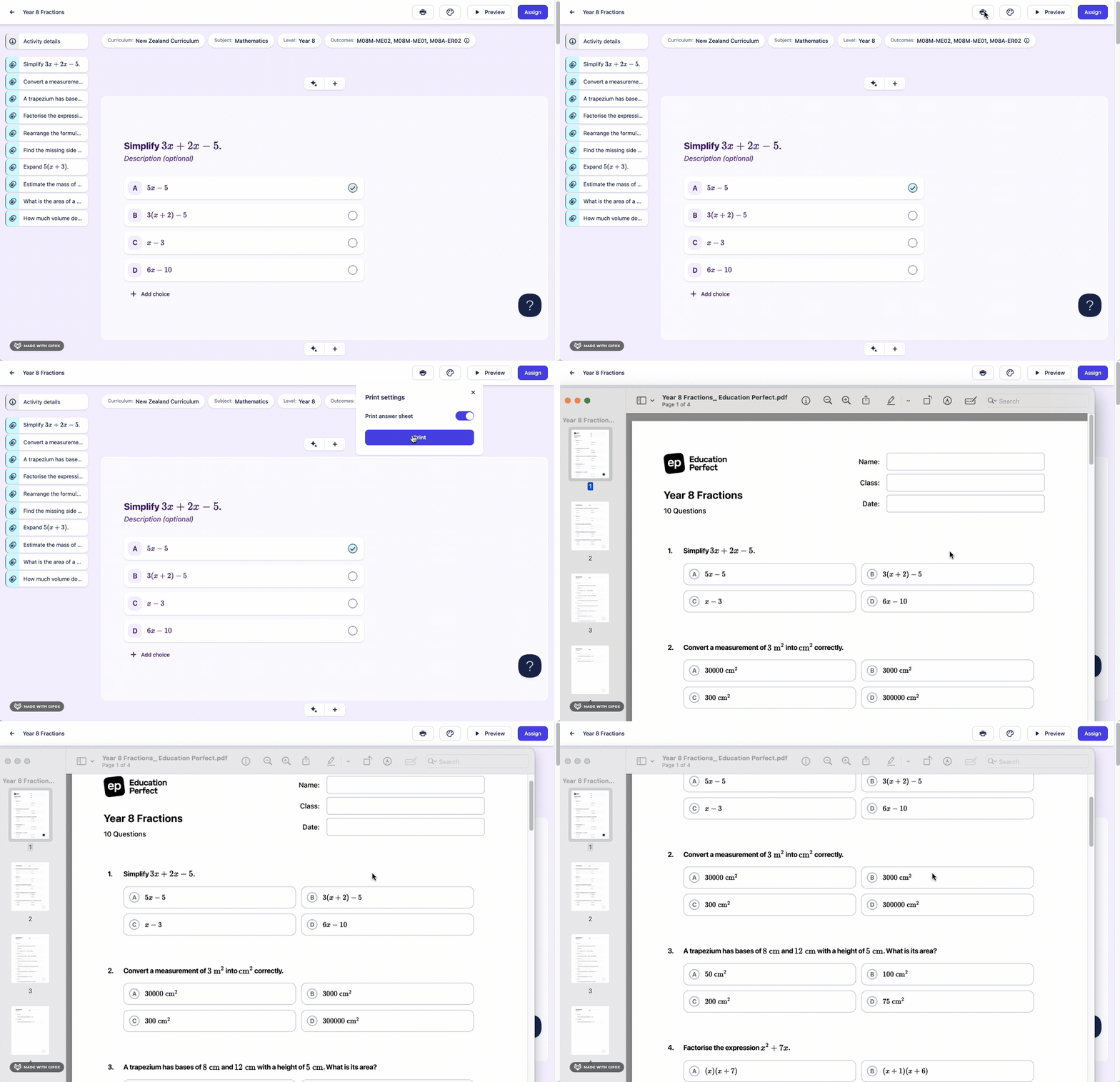
- In the print dialogue box you can choose to generate an answer sheet. Simply toggle off is this isn't required.
-
Select Print option to save as PDF for digital distribution or select your printer for an immediate hard copy.
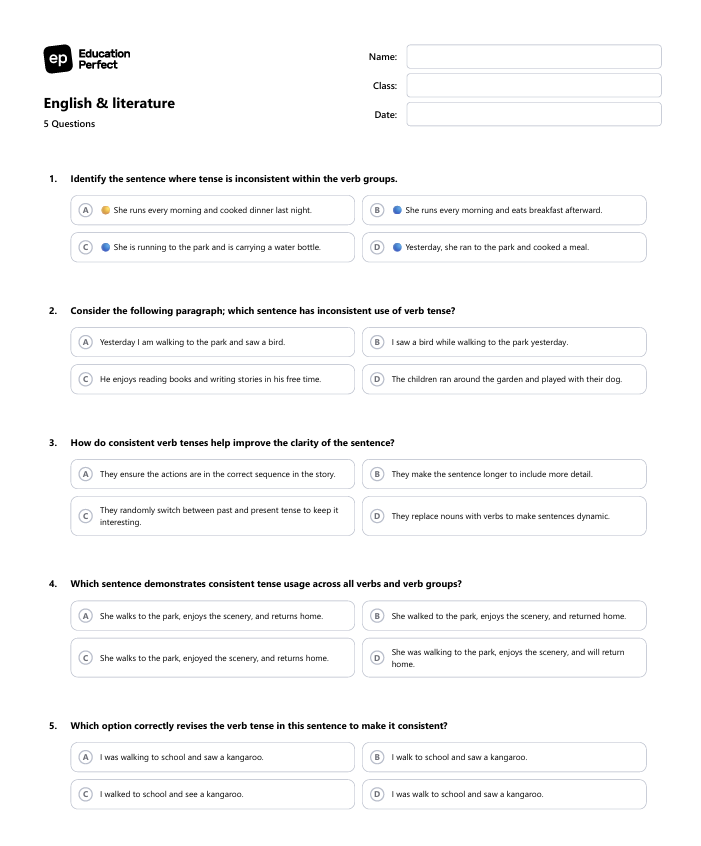
Printing for pre-built or custom assessments
For pre-built or custom assessments, the workflow is slightly different to ensure you receive a formatted, professional version of the exam.
- Go to the assessment overview page and select the Details tab.
-
Click the Export button.
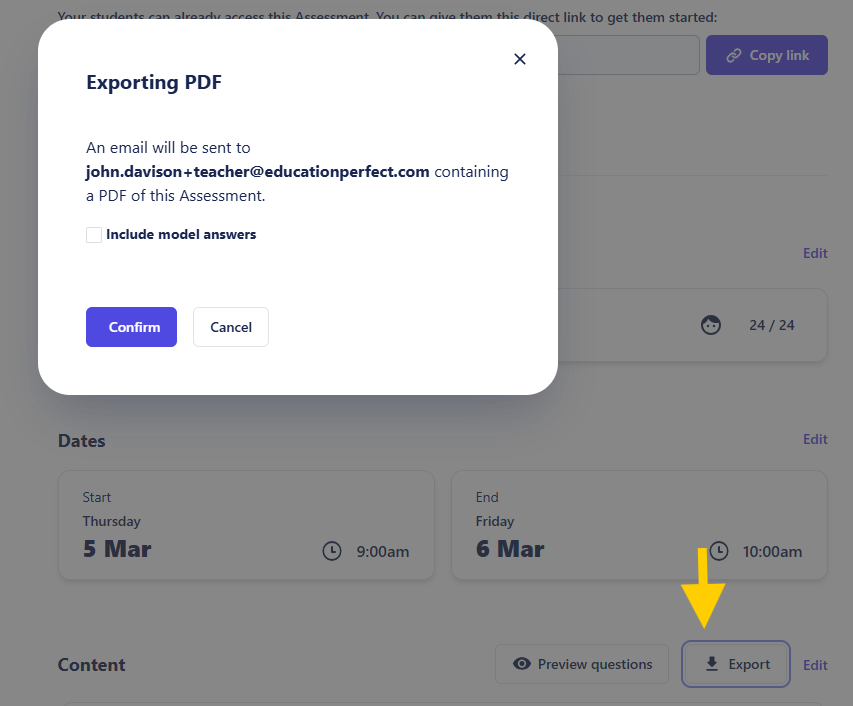
- The system will generate a PDF version and send it directly to your registered email address. You will have the option to include or exclude the answer key during this step.
Exporting Student Responses
If students have already completed their work online and you need a physical copy for manual marking or portfolio submissions, use the following methods:
| Task | Location | Action |
| Written Submissions | Responses Tab | Click the Export/Print button at the top. |
| Automarked Results | Report Section | Scroll to Student Results and select Export answers as PDF. |
When exporting from the Report or Responses sections, you will receive a confirmation email once the PDF generation is complete.